
To better support our customers, we have compiled a list of frequently asked questions.
Computer Issues
My computer does not turn on. What do I do now?
First, check that the computer power cord is securely plugged into the wall outlet and the computer. If you are using a power strip, make sure it is firmly connected to the wall and that the power switch on the strip is turned on. Some power strips include a built-in circuit breaker, usually a black or red button near the switch. Press the reset button and see if the computer powers on.
If the computer still does not turn on, try a different power outlet or power strip. If the issue continues, contact your IT support team for further assistance.
What do I do when my computer crashes or freezes?
If your computer stops responding or freezes, wait a few moments to see if it recovers on its own. If it does not respond to keyboard or mouse input, try restarting the computer. If possible, use Ctrl + Alt + Delete to restart or shut down safely.
If the system is completely unresponsive and cannot be restarted normally, press and hold the power button until the computer turns off, then turn it back on. Use this method only when necessary, as forced shutdowns can cause data loss. If crashes happen frequently, contact your IT support team for further troubleshooting.
What do I do if my hard disk stops working?
First, shut down the computer and then restart it. This can help determine whether the issue is temporary or related to the hard disk. If the computer fails to start correctly, makes unusual noises, or displays disk-related errors, the hard disk may be failing.
If you suspect a hard disk failure, stop using the computer and contact your IT support team immediately. Hard disk issues often require professional repair or replacement, and continued use may result in permanent data loss.
Monitor Issues
There is no display on my monitor. What should I do?
First, make sure the monitor is powered on. If no power light is visible, press the monitor power button until it turns on. If the monitor was previously on and the screen is now black, the computer may be in sleep mode. Try moving the mouse, clicking the mouse buttons, or pressing a key on the keyboard to wake it.
Next, check that the video cable is securely connected to both the monitor and the back of the computer. If the screen remains blank, try restarting the computer. If the issue continues, contact your IT support team for assistance.
What do I do if the image on the screen is distorted or skewed?
A distorted or skewed image is often caused by a loose or faulty video cable. Disconnect the video cable from the back of the computer and the monitor, then check that no pins are bent, burned, or broken. Reconnect the cable securely once verified.
If the issue continues, the display refresh rate may be set incorrectly. An incorrect refresh rate can cause flickering, waves, or moving lines on the screen. Adjusting display settings in Windows may resolve this issue.
Distortion can also be caused by electrical or magnetic interference. Make sure speakers, fans, or other electronic devices are not placed close to the monitor. If the problem persists after these checks, contact your IT support team for further assistance.
I get a “No Signal Input” message. What should I do?
First, verify that the monitor is correctly connected to both the monitor and the back of the computer. Make sure the video cable is firmly seated on both ends.
If the cables appear to be connected correctly, disconnect the video cable from the monitor and the computer, then reconnect it securely. Ensure the connection is tight. If the cable has screw connectors, tighten them to hold the cable in place.
Also, confirm that the monitor is set to the correct input source, such as HDMI, DisplayPort, or VGA. If the message continues, restart the computer. If the issue persists, contact your IT support team for further assistance.
There are black borders on my screen. What should I do?
Black borders can appear if the screen resolution was recently changed and the monitor did not automatically adjust to the new size. Try reverting the resolution to its previous setting or selecting the recommended resolution in Windows display settings.
If the borders remain, use the monitor’s built-in menu to manually adjust the screen size, horizontal width, or vertical height. Each monitor model is different, so the exact steps may vary. Refer to the monitor’s documentation for instructions. If the issue continues, contact your IT support team for assistance.
Mouse & Keyboard Issues
Why is my mouse acting erratically?
Erratic mouse movement is often caused by dirt or debris on the mouse sensor or surface. First, clean the bottom of the mouse and make sure it is being used on a clean, flat surface.
If the issue persists after cleaning and the mouse previously worked correctly, it may be defective. To confirm, connect the mouse to another computer and test it. If the same behavior occurs, replacing the mouse is recommended. If the mouse works normally on another computer, contact your IT support team for further assistance.
The wheel on my mouse is not working correctly. What should I do?
First, check the mouse settings in Windows 11.
- Select Start, then open Settings
- Go to Bluetooth and devices
- Select Mouse
- Review the scrolling settings and adjust options such as scroll direction and number of lines to scroll
If the settings appear correct, clean the mouse wheel and sensor to remove dust or debris. If the problem continues, test the mouse on another computer. If the issue occurs again, the mouse is likely defective and should be replaced. If the mouse works correctly on another computer, contact your IT support team for further assistance.
How can I clean my keyboard?
Before cleaning, shut down the computer and unplug the keyboard or disconnect it if it is wireless.
Turn the keyboard upside down and gently shake it to remove loose debris. Use compressed air to blow out dust and crumbs between the keys. Wipe the keys and surface with a soft cloth lightly dampened with isopropyl alcohol. Do not spray liquid directly onto the keyboard.
Do not remove keys unless the keyboard manufacturer specifically states that the keys are designed to be removed. Removing keys improperly can damage the keyboard and may not be covered under warranty.
If the keyboard continues to have issues after cleaning, contact your IT support team for assistance or replacement.
Windows OS Issues
How do I get into safe mode?
Safe Mode starts Windows 11 with only the essential drivers and services. It is commonly used to troubleshoot startup problems, driver issues, or software conflicts.
How do I start Safe Mode from within Windows 11?
- Select Start, then open Settings
- Go to System, then Recovery
- Under Advanced startup, select Restart now
- When the system restarts, choose Troubleshoot
- Select Advanced options
- Choose Startup Settings, then select Restart
- When the options appear, press 4 for Safe Mode, 5 for Safe Mode with Networking, or 6 for Safe Mode with Command Prompt
How do I start Safe Mode from the sign-in screen?
- On the sign-in screen, hold the Shift key
- While holding Shift, select Power, then Restart
- Continue holding Shift until the Choose an option screen appears
- Follow the steps starting with Troubleshoot as listed above
Which Safe Mode option should I choose?
- Safe Mode: Basic troubleshooting without internet access
- Safe Mode with Networking: Troubleshooting that requires internet or network access
- Safe Mode with Command Prompt: Advanced troubleshooting using command line tools
How do I exit Safe Mode?
Restart the computer normally. Windows will automatically return to the standard startup.
If Safe Mode cannot be accessed using these steps, contact your IT support team for assistance.
I can’t delete a file because it is in use by Windows.
Close all programs running on the computer and try again. If the issue persists after all programs are closed, restart the computer in Safe Mode and then attempt to delete the file. Safe Mode starts Windows with only essential services, which often releases files that are otherwise locked by the system.
How can I update my Microsoft Windows computer?
If you are running Windows 11, updates are managed through Windows Update and are typically installed automatically.
To manually check for updates:
- Select Start, then open Settings
- Go to Windows Update
- Select Check for updates
- Install any available updates and restart the computer if prompted
Windows 11 automatically downloads and installs essential security and system updates when they become available. In most cases, no action is required unless a restart is needed to complete the update. If updates are managed by your organization, some options may be restricted.
Is it safe to turn off a Windows computer without doing a shutdown?
Users should not turn off a Windows 11 computer by pressing the power button or restarting it while Windows is still running, unless the system is unresponsive or experiencing a serious issue. Using shutdown allows Windows to close applications, save data, and complete required system processes before powering off.
Forcing a shutdown can lead to data loss, file corruption, or system errors. Windows 11 includes safeguards that may check for and attempt to repair problems caused by improper shutdowns, but repeated forced power-offs can still cause long-term issues. Whenever possible, always use the standard shutdown option.
How can I recover a file from the recycle bin?
Double-click the Recycle Bin icon on your desktop. You will see a list of deleted files. Locate and select the file or files you want to recover, then right-click and choose Restore. The file will be returned to its original location.
Email Issues
I am unable to send or receive email. What should I do?
First, verify that your computer is connected to the internet by opening a website or checking your network connection status. If you do not have internet access, resolve the connection issue before troubleshooting email.
If your internet connection is working, confirm that the email service itself is available. Email issues can occur if the email server is experiencing an outage or maintenance. Contact your IT support team or network administrator to verify whether there is a known issue with the email service.
If the problem continues and no outage is reported, IT support may need to review your email account settings or access permissions.
I cannot receive any email attachments. What should I do?
If you are unable to receive email attachments, there are several common causes across Google Workspace, Microsoft 365, and other email providers.
First, check your mailbox storage. If your mailbox is full or near its storage limit, new messages and attachments may be blocked or rejected. In many cases, the sender will receive a notice that the message could not be delivered due to mailbox limits.
Second, email providers block certain attachment types for security reasons.
- Microsoft 365 blocks high-risk file types such as executable and script files to protect users from malware.
- Google Workspace also blocks dangerous file types and may prevent delivery of attachments that violate security or sharing policies.
- Other email services use similar filtering and may block files based on type, size, or security risk.
Third, attachments may be blocked due to size limits. Large files may exceed the email provider’s maximum attachment size. In these cases, the sender should use a secure file-sharing method instead of email.
If you are expecting an attachment that does not arrive, ask the sender to confirm the file type and size or to share the file using a secure link. If the issue continues, contact your IT support team to review mailbox limits and security policies.
Are spaces allowed in email addresses?
No. Spaces are not allowed in email addresses. Email addresses must be a continuous string of characters without spaces.
Names are often separated using a period or other permitted characters. For example, a user named John Smith may have an email address such as john.smith@example.com or johns@example.com. This format ensures compatibility across all email systems and services.
Printer Issues
My printer is printing smudged/distorted pages?
When printing on nontraditional paper your printer may experience smudges, uneven or crooked text, and/or text that runs off the edges of the paper. Your printer may be printing fuzzy, blurry, and/or other faint text because of dirty print heads. All modern printers have some type of printer cleaning, self-test, and/or diagnose mode that can be performed to check and clean the printers print heads and other internal equipment used to print.
How do I fix a paper jam?
Turn off the printer. Inspect the location or tray the printed paper ejects to. If the stuck paper is visible manually remove it. Remove all paper trays and any paper that may be stuck between the tray and the printer. If the stuck paper is visible manually remove it. Open the printer door that allows you access to the printer ink cartridges or toner and looks for any stuck paper. If the stuck paper is visible manually remove it. Turn the printer back on.
I lost my printer installation disk, how can I install my printer?
Thankfully a missing printer installation disk or disc is not the end of the world and will not require you to wait until a new diskette or CD can be sent to you. Today all printer and other hardware manufacturers are providing downloads on the Internet to their software programs and drivers that are included with their products.
Network Issues
I cannot connect to my network drive anymore. What should I do?
Start by verifying that the network cable is securely connected to the back of your computer. While checking the cable, confirm that the network port indicator lights are on. A solid green light typically means the network card is connected and has a valid signal. A flashing green light usually indicates that data is actively being sent or received.
How do I map a network drive?
Open Microsoft Explorer. In Explorer, click the Tools drop-down menu, then select “Map Network Drive.” Specify the network drive or network computer as the folder. If the computer’s name was hope, to map to that computer, type \hope If you wished to map to a shared folder on the hope computer such as an mp3 folder, you would type \hopemp3. If a different username or login is required to connect to this computer or drive, it must be specified in this window before clicking Finish.
How do I determine my computer’s name?
Right-click on My Computer and select Properties. In the Properties window, you will see the computer name along with the workgroup and system description. If you need to change the computer name or workgroup, select the Change option and follow the prompts.
Virus Issues
What is a computer virus?
A computer virus is a type of malicious software designed to disrupt normal computer operations, spread to other systems, or damage data. Viruses are typically created with harmful intent and can infect a computer through email attachments, downloads, or compromised websites.
To reduce the risk of infection, computers use antivirus or endpoint protection software that runs in the background and helps detect, block, and remove malicious activity. Some computers include built-in protection, while others require separate security software. It is essential to keep security software active and up to date, as outdated or expired protection may leave a system vulnerable.
Does Windows come with a virus protection program?
Yes. Windows 11 includes built-in virus and threat protection called Microsoft Defender Antivirus. It is enabled by default and provides real-time protection against viruses, malware, ransomware, and other threats.
Microsoft Defender runs automatically in the background, receives regular security updates from Microsoft, and integrates with Windows security features. For many users, this provides a solid baseline level of protection.
Some organizations may choose to use additional or alternative security solutions for advanced protection, centralized management, or compliance requirements. In those cases, Microsoft Defender may be supplemented or managed alongside other security tools as directed by IT support.
Can a virus damage computer hardware?
In most cases, no. Computer viruses are software and are designed to affect files, applications, or system settings, not to physically damage hardware.
However, malware can indirectly cause hardware-related symptoms. For example, a virus may overload the system, cause excessive processor usage, interfere with drivers, or force repeated crashes. Over time, this can contribute to overheating or abnormal behavior, but it does not physically damage components on its own.
If you are experiencing problems with hardware such as a printer, video card, or sound device, the issue is usually related to drivers, configuration, or a hardware failure rather than a virus. If you suspect malware or continue to have hardware issues, contact your IT support team for proper diagnosis.
If I format or erase my hard drive, will it remove a virus?
In most cases, yes. Formatting or erasing the hard drive and reinstalling the operating system will remove most viruses and malware.
However, reinfection is still possible if infected backups are restored, malicious files exist on external drives, or the computer reconnects to a compromised network or device. In rare cases, specific advanced threats can persist outside the operating system.
Before restoring data, ensure all backups and external media are scanned with up-to-date security software. After reinstalling the system, confirm that antivirus or endpoint protection is enabled and entirely up to date. If you are unsure, contact your IT support team to ensure the system is cleaned and properly secured.
Browser Issues
How do I delete Internet cookies?
Below are the supported steps for the most common browsers. These instructions apply to current versions of each browser.
Microsoft Edge
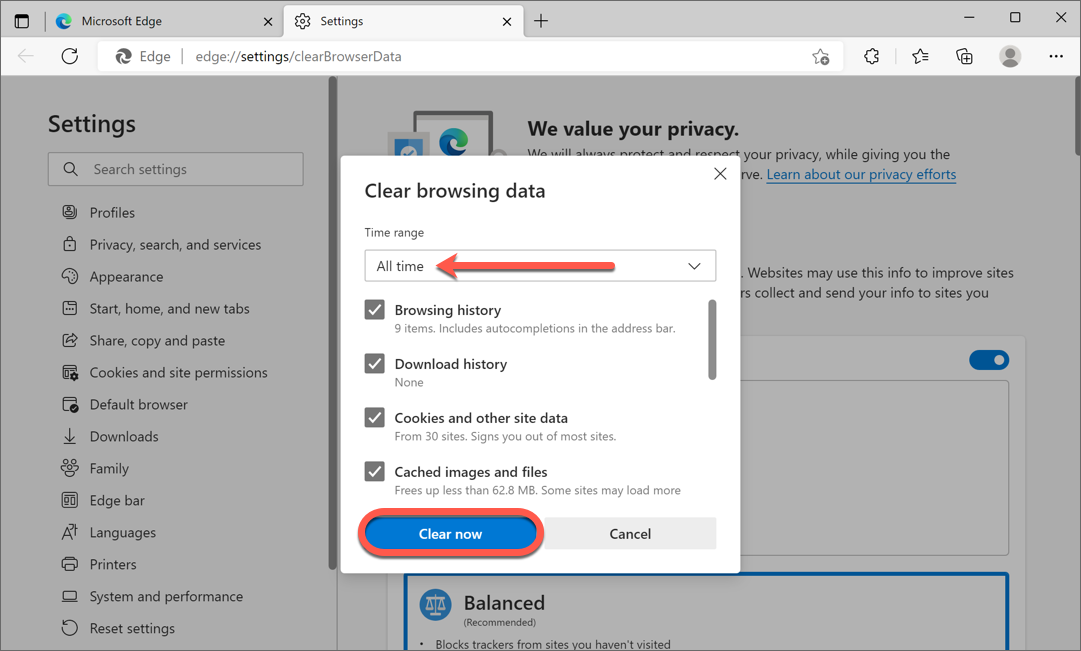
- Open Microsoft Edge
- Select the three dots in the top right corner
- Select Settings
- Choose Privacy, search, and services
- Under Clear browsing data, select Choose what to clear
- Check Cookies and other site data
- Select Clear now
Google Chrome


- Open Google Chrome
- Select the three dots in the top right corner
- Select Settings
- Choose Privacy and security
- Select Clear browsing data
- Check Cookies and other site data
- Select Clear data
Mozilla Firefox
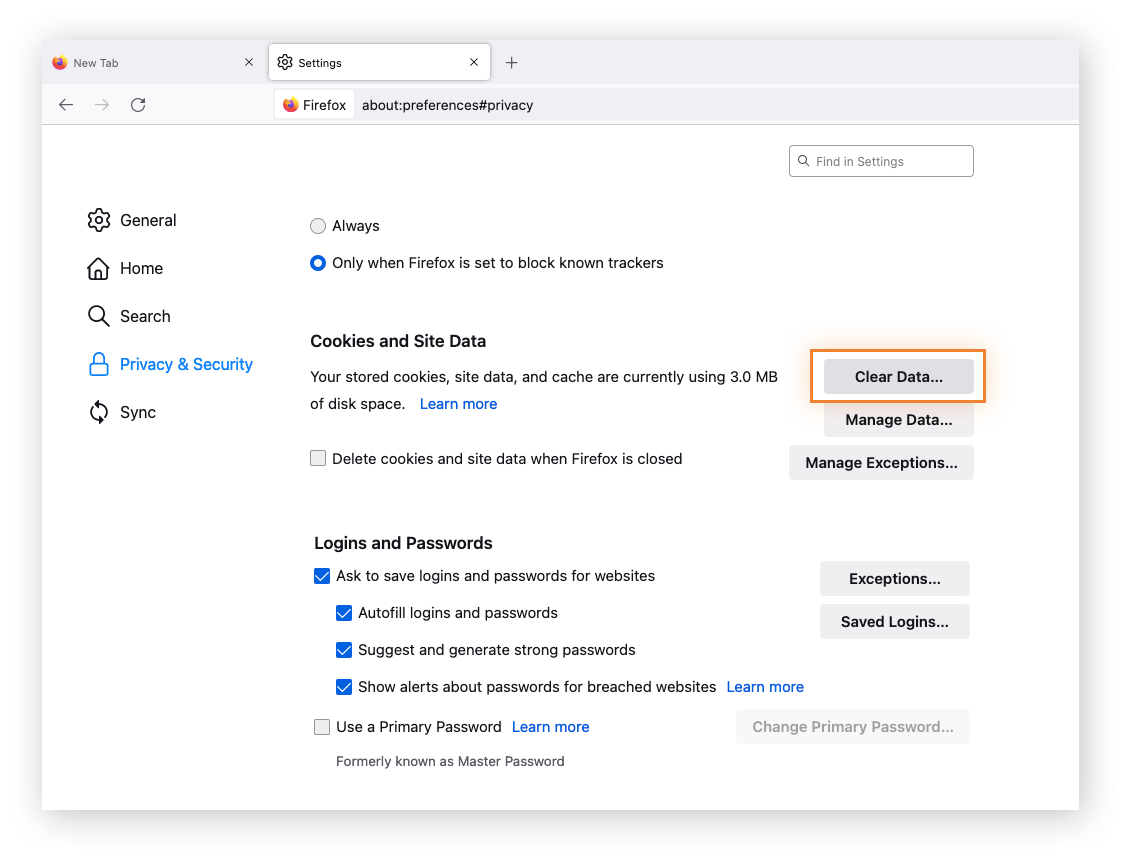
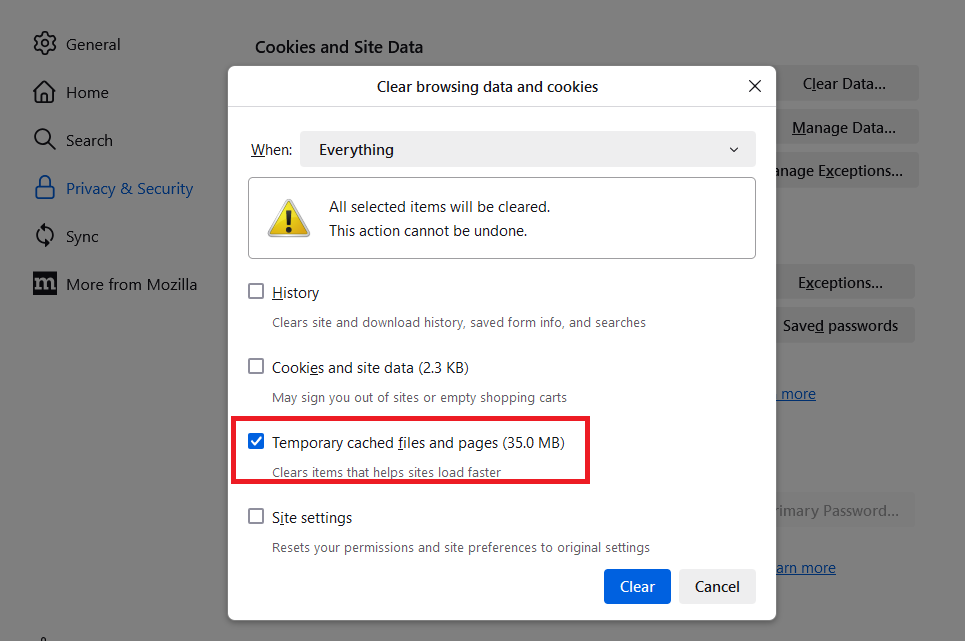
- Open Mozilla Firefox
- Select the menu button in the top right corner
- Choose Settings
- Select Privacy and Security
- Under Cookies and Site Data, select Clear Data
- Confirm Cookies and Site Data, then choose Clear
Other browsers
If you are using a different web browser, refer to the official documentation or help section for that browser. Cookie management steps vary by browser and version.
If clearing cookies does not resolve your issue or causes unexpected behavior, contact your IT support team for assistance.
 Culligan Technology LLC